WARDOGS Best Settings: What to Change First on PC
The WARDOGS settings that actually matter on PC: raw input, FOV, display mode, netcode telemetry, and frametime stability — in the order to change them.
FAQ
What are the best settings for WARDOGS on PC?
Should I use fullscreen or borderless windowed mode?
Why is there no complete settings list published yet?
Every new PC launch produces the same content cycle: a hundred articles “confirming” the best settings for a game nobody has played yet. We are going to do the useful version instead. This page gives you the settings framework that stays true before, during, and after launch week — the categories of options that produce real, measurable wins in any PC shooter, in the order you should work through them. What we are deliberately not doing is inventing exact menu names and slider values for menus we have not exhaustively tested; a full menu-by-menu walkthrough lands here once Early Access settles and every setting can be verified in-game.
Why a Framework Beats a Settings List at Launch
Settings advice fails in two ways: it tells you what to set without telling you why, so you cannot adapt when menus change, and it drowns you in twenty optimizations when four of them produce ninety percent of the benefit. Early Access makes both failure modes worse, because the menu you read about today may be reorganized in the first major patch.
So the deal is this: work the categories below, in order. Each one explains the tradeoff so you can make the right call regardless of what the menu happens to call it. When we publish the exhaustive walkthrough, it will slot into this same structure.
The Settings Menu, Mapped (Community-Sourced)
Launch-window footage from PC players shows the actual menu structure, and it is good news: the menu is deep but sane, with A/B preview panes built into every quality option. Until we verify labels against a live build ourselves, treat this map as community-reported — accurate to launch-window footage, subject to patch reorganization.
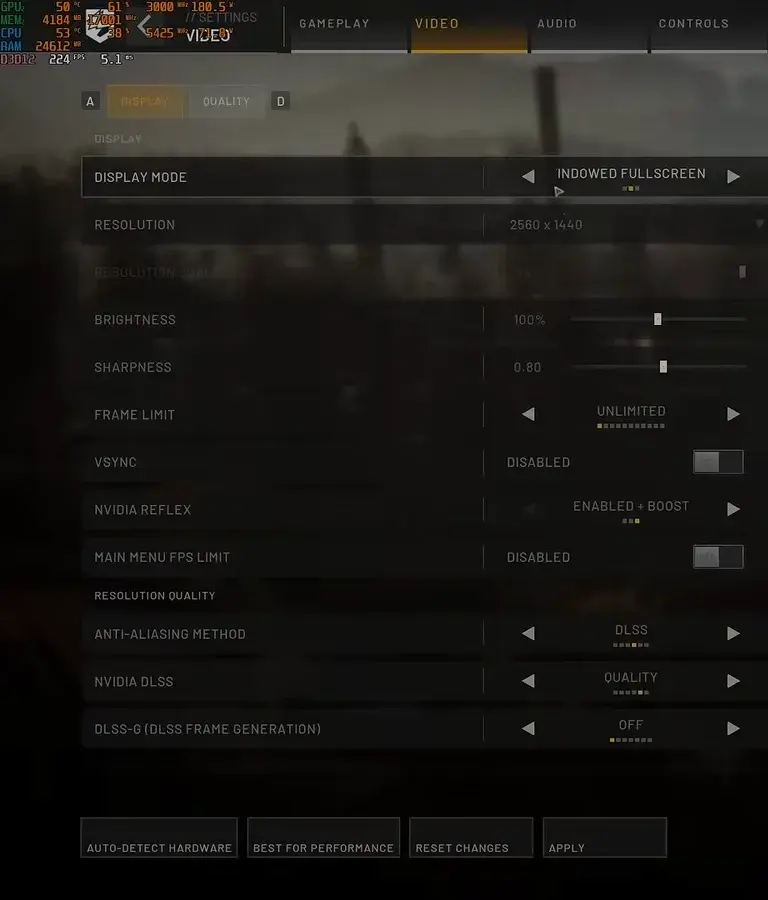 The video tab, mapped from Kephren’s launch-window walkthrough: Reflex, frame limit, V-Sync, upscaling and DLSS all live here.
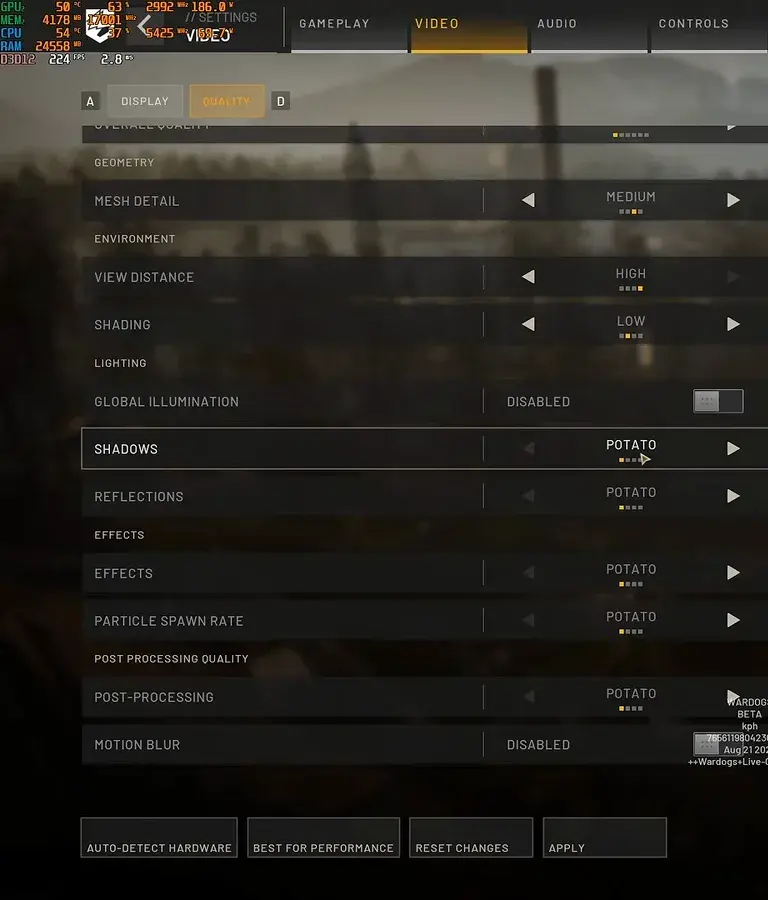 The quality tab, with shadows on the lowest “potato” setting — the visibility-versus-looks tradeoff the community keeps arguing about.
| Menu item | Category | Community guidance from launch footage |
|---|---|---|
| Display mode | Video | Fullscreen-style mode for latency; windowed for alt-tab convenience |
| Frame limit / Main menu FPS limit | Video | Unlimited in match; cap in the driver if you want pacing control |
| V-Sync | Video | Disabled in-game (input lag); driver-level V-Sync if you run G-Sync |
| NVIDIA Reflex | Video | Enabled + Boost |
| Resolution quality + anti-aliasing method | Video | DLSS Quality (NVIDIA), FSR 2 Quality (AMD), XeSS Ultra Quality worth testing |
| DLSS-G (frame generation) | Video | Off for multiplayer — the input lag outweighs the frames |
| Sharpness | Video | ~0.60 is a common starting point; adjust to taste |
| Mesh detail / view distance | Quality | Medium mesh; view distance high — spotting matters more than grass |
| Shadows / reflections / effects / post-processing | Quality | Low-to-potato for visibility and FPS; the community’s biggest argument |
| Global illumination | Quality | Disabled for a free FPS gain |
| Motion blur / depth of field / lens flare / bloom | Quality | Off — visual noise that hides enemies |
| Textures / texture streaming / filtering | Quality | High with 8GB+ VRAM, medium at 6GB, low at 4GB |
Which Input Settings Matter First
Input is where confidence lives. Before you touch anything visual:
- Raw input, if the menu offers it. Raw mouse input bypasses desktop acceleration so your aim means the same thing at every speed. Most modern shooters expose this as a single toggle; if this game’s menu has an input section, this is the first thing to look for. If it does not, disable any OS-level mouse acceleration and the effect is largely the same.
- Sensitivity you can repeat, not sensitivity streamers use. Pick a sensitivity where a full swipe across your pad turns you roughly 180 degrees, then stop touching it. Relearning muscle memory costs more than any setting gains.
- Your mouse driver, not the game, often adds smoothing. Check the vendor software for acceleration or angle-snapping options and turn them off at the driver level — that fix survives every game you play.
How Field of View Changes the Game
FOV is the highest-leverage visual setting in any first-person or over-the-shoulder shooter:
- Higher FOV widens your view, which is information — you see the flank before it kills you. It also makes targets smaller at distance.
- Lower FOV magnifies what is in front of you, which helps long-range precision, at the cost of peripheral awareness.
In a game with large 2x2km zones and vehicular play, the awareness argument usually wins for most players: start toward the higher end of the available slider, play three matches, and only pull it back if long-range fights feel uncomfortably small. One caution that applies to any game: extreme FOV values distort at the screen edges, so the highest number is not automatically the best one.
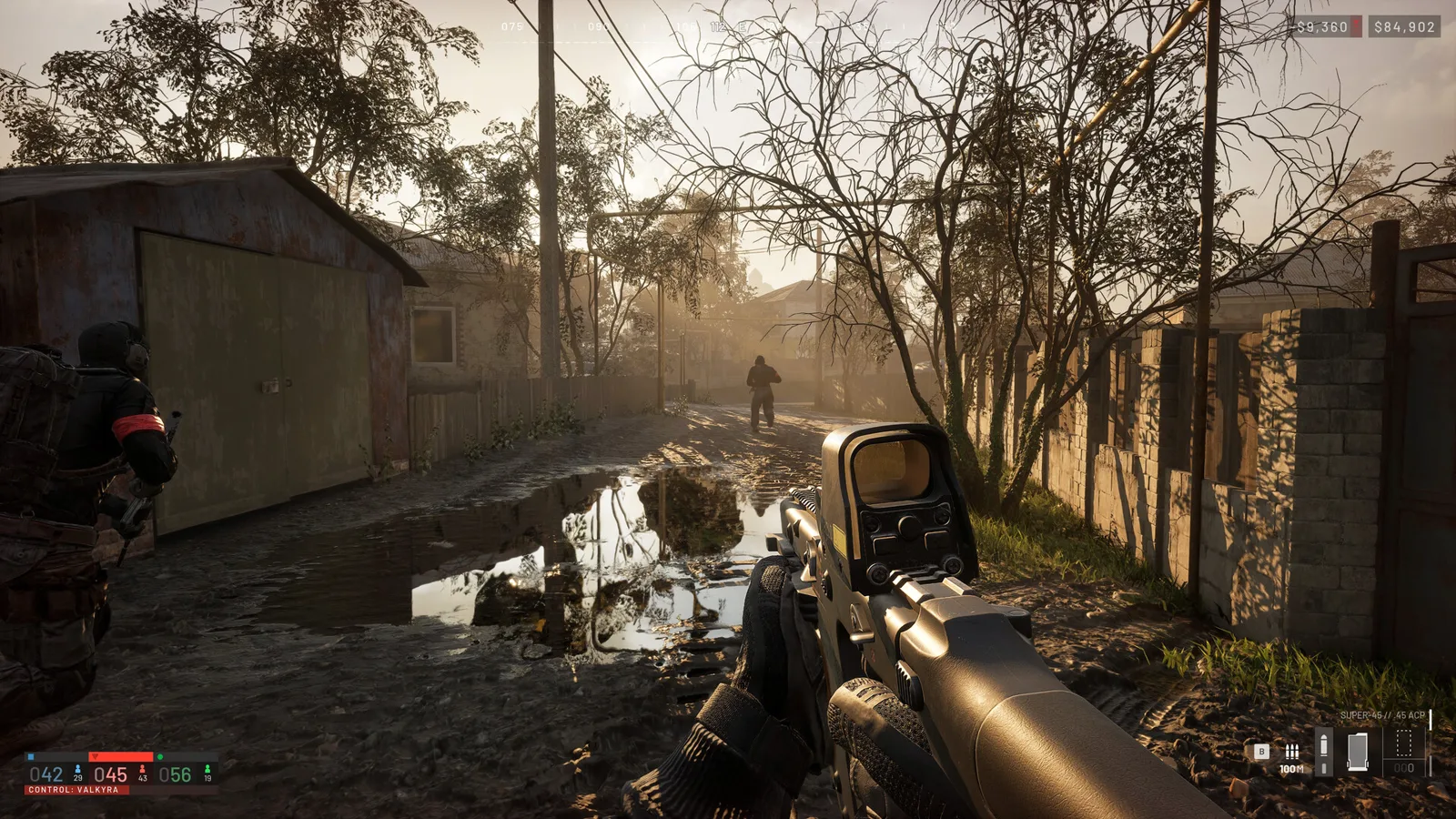 Long sightlines across open zones are why the awareness side of the FOV argument usually wins.
Fullscreen or Borderless: The Real Tradeoff
This decision is about latency versus convenience:
- Exclusive fullscreen generally delivers the lowest input latency and the cleanest frametime behavior, because the game talks to the display more directly. It is the pick if you care about every millisecond.
- Borderless windowed trades a small amount of latency for instant alt-tabs and trouble-free overlays — captures, chat apps, and second monitors all behave better.
Start with exclusive fullscreen. If the difference in feel is imperceptible to you and you alt-tab constantly, borderless is not a mistake; it is a preference. What you should not do is run windowed mode with v-sync fighting your frame rate and then blame the game for input lag.
Turn On Netcode and Telemetry Displays If the Game Has Them
If the settings menu includes any of the following, enable them for at least your first twenty hours:
- Network/ping display — in a launch-window game, distinguishing server trouble from your own mistakes is half of staying sane. When something feels wrong, the number tells you whether to blame the match or your aim.
- FPS counter and frametime graph, if present — smooth frametimes matter more than a big average number. If the game lacks these, your GPU vendor’s overlay can display them externally.
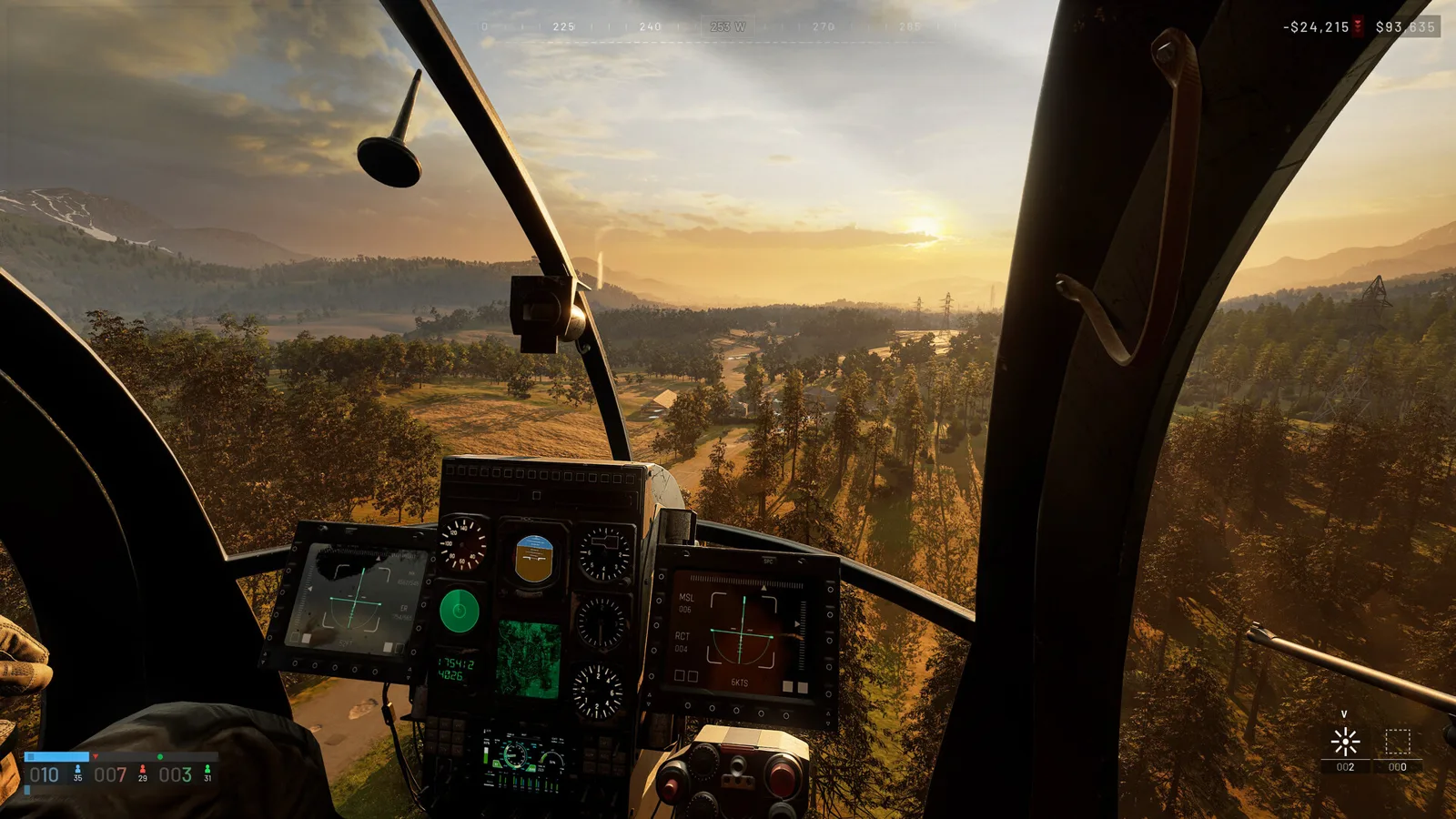 The HUD is data — cash, heading, squad count. Whatever the menus finally call these options, keep the readouts on.
Telemetry is also how you verify the next category actually helped. Change one thing, look at the graph, keep it or revert it. That feedback loop is the entire discipline of good PC settings work.
FPS Caps and Frametime Stability
Frame rate consistency beats frame rate peaks:
- Cap your FPS slightly below what your system sustains. A rock-steady 120 feels better than a juddery 160, because frame pacing — the evenness of delivery — is what your hands perceive.
- If your monitor supports a high refresh rate and you have GPU headroom, use it. If you are on a standard 60Hz display, a stable 60 with even pacing is the target.
- Adaptive sync (G-Sync/FreeSync), if your monitor has it, removes the stutter/tearing dilemma entirely. Enable it in the driver, cap a few frames below the monitor’s maximum, and let the technology work.
Driver-Level Settings That Beat Any In-Game Menu
Some of the highest-impact settings do not live in the game at all:
- NVIDIA or AMD control panel: set power management to prefer maximum performance for the game’s profile, so your GPU does not downclock between firefights and stutter on re-engagement.
- Low-latency modes (Reflex-style features on NVIDIA, Anti-Lag on AMD) shave input latency in GPU-bound scenarios. On, for a competitive shooter.
- Windows side: hardware-accelerated GPU scheduling, game mode, and disabling fullscreen optimizations are all small, reversible levers — test them with the frametime graph from the section above rather than in bulk. If you suffer from catastrophic frame drops or stuttering during 100-player firefights, follow our dedicated low FPS and stuttering troubleshooting ladder.
What to Leave at Default (For Now)
Everything not listed above. Graphics presets, texture quality, shadow detail, and post-processing effects are legitimate settings, but at launch they need in-game testing against real performance data — which is exactly what we will do once Early Access is live and patchable. Graphics advice written from a launch-week screenshot is how sites end up recommending settings that no longer exist.
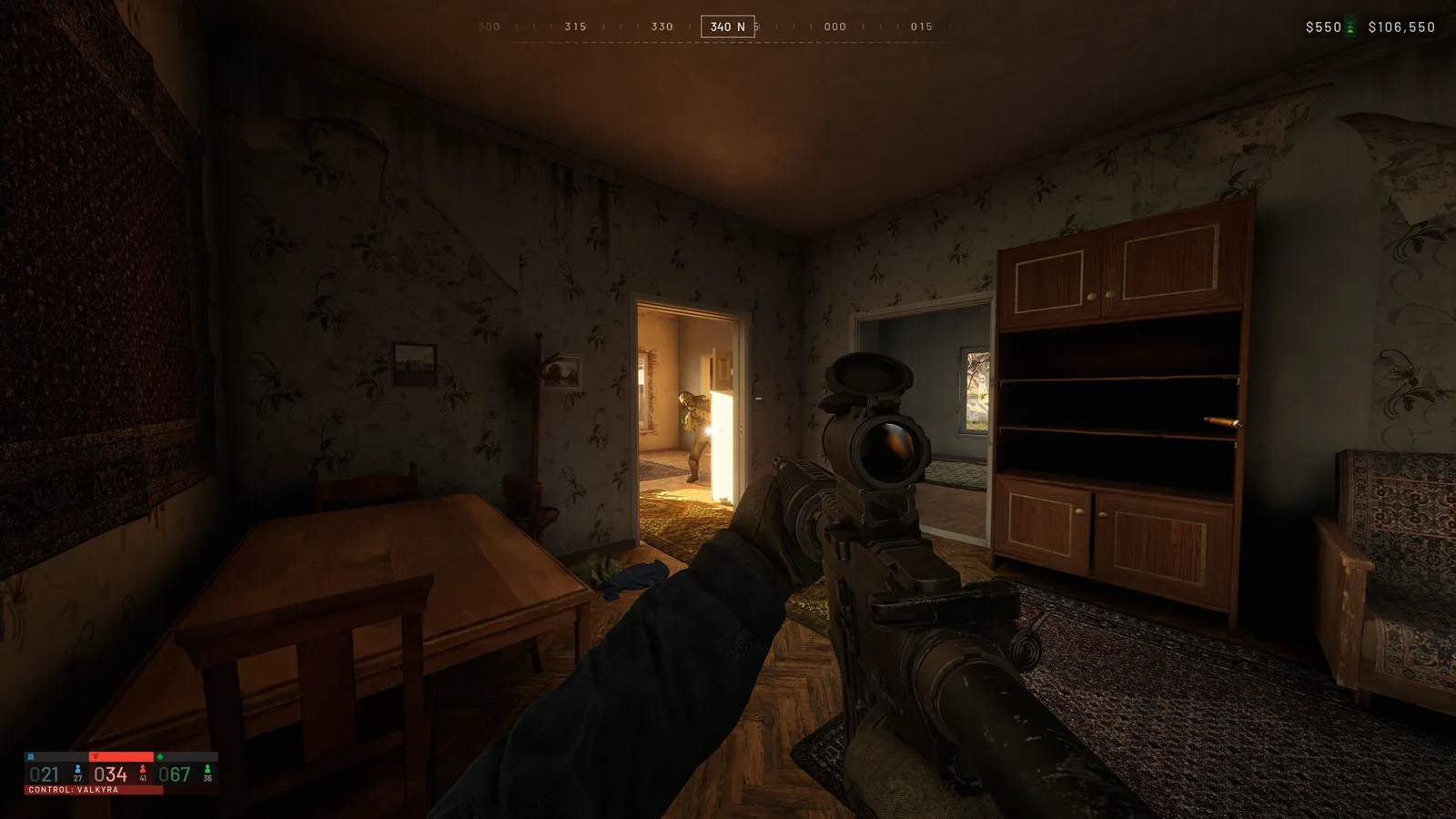 Interiors are where preset differences actually show — shadow-heavy fights like this are what we will benchmark after launch.
The 10-Minute First-Pass Checklist
Run this before your first real session:
- Raw input on (or OS mouse acceleration off), sensitivity chosen, then frozen.
- FOV toward the higher end of the slider.
- Exclusive fullscreen selected.
- Network and FPS displays enabled, externally if the game lacks them.
- FPS capped under your sustainable average; adaptive sync on if your monitor supports it.
- GPU driver current, vendor low-latency mode enabled.
If the game will not even launch long enough to reach the menu, that is an anti-cheat problem, not a settings problem — start with our Elytra and launch-failure fixes. And once you are in, spend your first matches on survival rather than loadout spending; the beginner’s guide to the economy explains why the refund system rewards exactly that. When you are ready to spend, the weapons and vehicles overview tracks what the launch arsenal actually includes.
What We Will Add After Launch
The full menu-by-menu walkthrough — every graphics option tested, exact paths, recommended values per GPU tier, and the reasoning — goes live on this page once the Early Access menus are final enough to document honestly. It will be stamped with the build it was verified on, and updated when patches move things. The categories above will not change; only the specifics will. For everything else on setup and play, see the settings index and the guides index as coverage grows.
Screenshots © Bulkhead / Team17 (Steam store page). Menu footage: Kephren on YouTube.
Related Articles
guides
WARDOGS Update 0.2.0 Patch Notes: Season 2 Player Guide
WARDOGS Update 0.2.0 (Season 2), announced 2026-10-15: faster XP, softer calibers, lower logistics pay, new guns and vehicles — key old→new numbers and stale guides.
guides
WARDOGS Update Time: Every Patch & Maintenance Window
Every official WARDOGS patch and maintenance window: exact UTC start time, planned downtime, how much notice players got, and what it is in your time zone.
guides
WARDOGS Player Count: Steam Charts, Peak and Is It Dead?
How many people play WARDOGS? Dated Steam readings, why trackers disagree, the 428,666 vs 402,686 peak gap, beta-weekend counts and whether the game is dead.
Was this helpful?
Thanks for the feedback!